Why Is the IQOS ILUMA i Button Not Working After Charging?
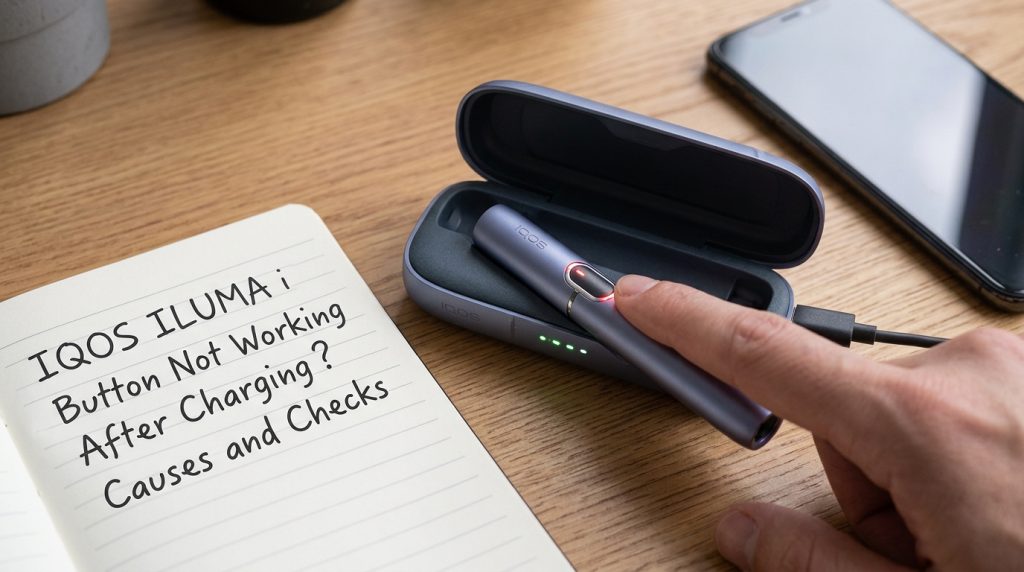
The device looks charged, but pressing the button does nothing, or the lights you expect never show up. Before anything else, work out which part is the problem.
- Pocket Charger button: a short press should show how much charge the charger has left.
- Holder touchscreen: it should wake when you tilt the holder toward you, tap the screen briefly, or insert a TEREA stick.
Most of the time, it’s an incomplete charge, a poorly seated holder, dirty contacts, or a minor glitch. Sometimes it’s a real fault.
Common Causes of an Unresponsive IQOS ILUMA i
These are the usual suspects, whether the device is new from Vape Hype or you’ve had it a while.
1. Not Enough Charge
A charged pocket charger doesn’t always mean a charged holder.
- A flat Holder may need a few minutes in a charged Pocket Charger before it reacts. A first charge can take up to 10 minutes.
- To check the Pocket Charger, press its button briefly. Four LEDs mean more than 75% charge, and one LED means less than 25%. One LED blinking orange three times means the battery is depleted.
- To check the Holder, tilt it towards you or briefly press the touchscreen. The status lights show the battery level.
2. The Holder Isn’t Sitting Properly
If the Holder isn’t pushed all the way in, it may not charge or make contact.
- Take it out and put it back in, pressing it fully into place.
- Close the Pocket Charger the way the user guide shows.
3. Dirty Charging Contacts
A bit of dust or debris on the contacts or around the USB port can stop charging from working properly.
- Unplug the device first.
- Wipe the contacts you can see gently with a dry, soft cloth.
- Don’t use water, metal tools or anything rough.
Read next: How to clean IQOS ILUMA i properly
4. The Holder Hasn’t Started
The Holder doesn’t have a conventional power switch. It starts when you insert a TEREA stick, or you can use the touchscreen controls.
- Use an unused TEREA stick and push it in as the user guide shows.
- Compatible sticks include IQOS TEREA Amber, IQOS TEREA Bronze, and IQOS TEREA Silver.
- If nothing happens, the cause is probably something else, like a flat battery or a temporary error.
- A Pocket Charger button that won’t respond is a different problem from a Holder that won’t start.
5. A Temporary Glitch
Electronics freeze up sometimes. If there’s no visible damage and no battery warning signs like swelling or unusual heat, try resetting the device.
6. Damage or an Internal Fault
Drops, liquid, and repeated charging problems can all cause damage.
- If it’s been dropped or got wet, more troubleshooting probably won’t help.
- If it keeps failing after the checks and a reset, it needs professional support.
Checks to Do Before You Reset
Rule out the basics first:
- Find out which part isn’t responding: the Pocket Charger button or the Holder.
- Check the Pocket Charger battery with a short press of its button.
- Check the Holder’s battery by tilting it towards you or briefly pressing the touchscreen.
- Take the Holder out and put it back in properly.
- Look at the contacts and USB port for dust, debris, or damage.
- Try again with a short touchscreen press or a stick inserted.
- Watch the lights for any blinking or change.
How to Reset an IQOS ILUMA i That Isn’t Responding
This is for the two-piece IQOS ILUMA i, with a Holder and a Pocket Charger.
- Put the Holder in the Pocket Charger, seated properly.
- Press and hold the Pocket Charger button for 10 seconds, then let go.
- Watch the status lights. They turn off, blink twice, and come back on. That confirms the reset.
- Check that the touchscreen and device respond normally.
Got an ILUMA i ONE? It’s an all-in-one design, so the steps are different. Our IQOS ILUMA i ONE troubleshooting guide covers it.
What Do the Device Lights Mean?
The same light can mean different things on the Pocket Charger and the Holder, so check which part you’re looking at.
| What you see | What it may mean | What to check |
|---|---|---|
| No lights at all | A depleted battery, a seating problem or a fault | Charge it, reseat the Holder and try a reset |
| Pocket Charger: 4 LEDs | More than 75% charged | Nothing, the charger is fine |
| Pocket Charger: 1 LED | Less than 25% charged | Charge it soon |
| Pocket Charger: 1 LED blinks orange three times | Battery depleted | Charge it |
| Holder: zero inside the light ring and no lights on the ring | Holder battery depleted | Place it in a charged Pocket Charger |
| Lights turn off, blink twice and come back on after a reset | The reset is complete. | Check that it works normally |
If you see a pattern that isn’t listed, check your model’s user guide or contact us.
When to Stop and Get Help
Don’t keep troubleshooting if:
- It still doesn’t respond after charging and a reset.
- There are no lights at all even after charging properly.
- The Pocket Charger button is stuck, damaged, or hard to press, or the touchscreen is cracked or unresponsive.
- It’s been dropped or got wet.
- It gets unusually hot, swells or shows other battery warning signs.
Please don’t open the device or try to repair it yourself. If the device needs replacing, compare the IQOS ILUMA i Standard, IQOS ILUMA i Prime, and IQOS ILUMA i ONE.
Read next: Ultimate guide to common IQOS ILUMA issues
What to Remember
Check the lights, reseat the Holder and try the 10-second reset. If nothing works, get it checked.
Frequently Asked Questions
Why won’t my IQOS ILUMA i turn on after charging?
The holder may not have enough charge, it may not be seated properly, or the contacts may be dirty. It could also be a temporary glitch or a fault. Check the lights, reseat the Holder and try a reset.
How do I turn on my IQOS ILUMA i after charging?
Insert an unused TEREA stick until the holder vibrates and the lights pulse. Heating then starts on its own. You can also use the touchscreen controls.
Will a reset fix an unresponsive button?
It can fix a temporary glitch. It won’t repair physical damage or a faulty button.
Why does my IQOS ILUMA i show lights but not respond?
It may be a temporary glitch, or the problem could be with the Holder rather than the Pocket Charger. Check which part the lights are on, then try a reset.
What if it still doesn’t work after resetting?
Get professional support. Don’t open the device or try to repair it yourself.