If you’ve picked up a JUUL 2 from VapeHype and noticed those little lights doing different things, you’re not alone in wondering what they’re up to. They aren’t just warning lights. They’re how the device talks to you.
In this guide, we’ll walk through what the lights tell you about battery, pod authentication, e-liquid level, and charging. We’ll also look at how the app fits in and what to do when a light looks unusual.
How JUUL 2’s Smart Light System Works
JUUL 2 doesn’t have a screen or buttons. Instead, it uses a small set of
LED lights as its interface. Tap the side of the device twice and you’ll see up to four lights, which is how it shows you how much battery is left.
The lights aren’t limited to battery, though. Depending on what you’re doing, they can also tell you about the pod you’ve just inserted and how much e-liquid is left in it. So there are really three things to keep an eye on: battery, pod authentication, and e-liquid level.
The best way to think about the LED is as a quick, wordless conversation. The device shows you something, and once you know the pattern, you know what it means.
Want the bigger picture on design, battery, and technology? Read JUUL 2 Device Features Explained: Design, Battery & Smart Technology.
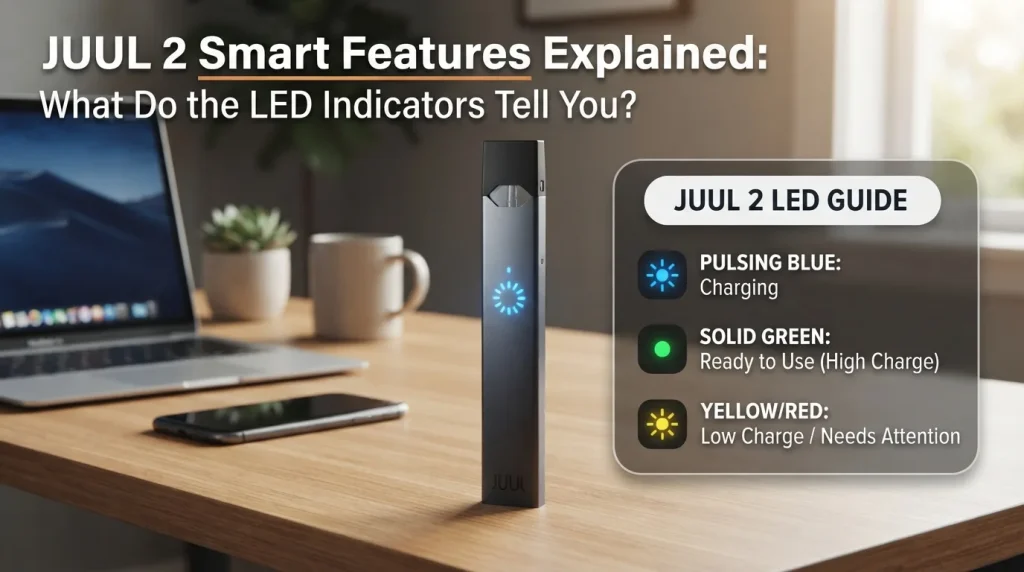
JUUL 2 LED Indicators at a Glance
This table is a quick reference for what the lights are telling you. If you see something that isn’t listed here, check JUUL’s official support for your device.
| What you see | What it tells you | What to do |
|---|---|---|
| Four lights after a double-tap | 100% battery | Keep using it. |
| Three lights | About 75% battery remaining | Keep using it. |
| Two lights | About 50% battery remaining | Consider charging |
| One light | About 25% battery remaining | Charge soon. |
| Purple lights after you insert a pod | The pod has been authenticated, and the number of lights shows how much e-liquid is left. | Replace the pod when the level is low. |
| Lights or a sound when a pod isn’t accepted | The pod couldn’t be authenticated, so no vapor is produced. | Reseat the pod, or use an authentic JUUL 2 pod. |
| White pulsing light while on the dock | The device is charging. | Leave it on the dock. |
| A red or unfamiliar pattern | Something needs attention. | Charge the device first, then check JUUL support if it continues. |
What the JUUL 2 Lights Tell You About Battery
Battery is the light signal most people use every day, and it’s also the easiest one to read. Each light represents 25% of the battery.
- Four Lights: Full Battery: Four lights mean that the battery is full. You can keep going without a second thought.
- Three Lights: Around 75%: Three lights means you’ve used a bit of charge but still have plenty left. There’s nothing to do here except carry on.
- Two Lights: Around 50%: Two lights is the halfway mark. It isn’t an emergency, but it’s a good moment to think about when you’ll next be near the dock.
- One Light: 25% or Less: One light means roughly a quarter of the battery is left, so it’s time to recharge. If you see a red light or any pattern you don’t recognize, put the device on its dock first, then check JUUL support if it keeps showing.
How to Check Battery Without Taking a Puff
Just tap the side of the device twice. The lights show your battery level straight away, with no puff needed. It’s a much better habit than waiting for the device to run out on you.
Want a full walkthrough of charging, pods, and battery checks? Read How to Use JUUL Devices and Pods | Step-by-Step Guide.
What the LED Shows When You Insert a JUUL 2 Pod
This is where JUUL 2’s lights do something a standard battery indicator can’t.
Pod Recognition
Every JUUL 2 pod has a unique encrypted ID chip. That chip lets the device recognize authentic pods instead of treating every pod that fits as acceptable. JUUL 2 is designed to work with authenticated JUUL 2 pods, while original JUUL pods aren’t compatible with the JUUL 2 system.
How the Lights Confirm Pod Status
When you insert a JUUL 2 pod, the device first checks its Pod ID. Once the pod is authenticated, purple lights come on, and the number of lights shows how much e-liquid is left, the same way the battery check works. You get two useful answers in one moment: the pod is recognized, and here’s how much is left in it.
What Happens With an Unsupported or Unauthenticated Pod?
If the device can’t authenticate a pod, it won’t produce vapor, and it lets you know through its lights or a sound. Plenty of guides simply call that a broken device. In reality, it’s the device doing exactly what it was designed to do. The same goes for original JUUL pods, which are made for the original device and don’t belong in a JUUL 2.
How JUUL 2 Uses Lights to Show E-Liquid Information
E-liquid level is another thing the smart light system can show you, and it reads just like the battery display.
Why the JUUL 2 Can Tell You About Pod Level
The pod and device work together to provide e-liquid information through the smart light system. That’s why you can get a feel for how much e-liquid is left in a pod like Summer Menthol without opening anything or counting puffs.
LED Information vs the JUUL App
The easiest way to remember the difference is this: the LED is for a quick glance, and the app is for more detail. The lights give you the headline. Where the JUUL app is available, it can show battery and e-liquid levels in a more detailed way.
Why This Is Different From the Original JUUL
The original JUUL kept things simple. JUUL 2 adds a lot more on top.
| Feature | Original JUUL | JUUL 2 |
|---|---|---|
| LED interface | Basic status feedback | Multi-light smart interface |
| Pod ID authentication | No | Yes |
| Bluetooth | No | Yes |
| App connectivity | No | Yes, where the app is available |
JUUL 2 Charging Lights Explained
Charging is a different job from checking your battery, and the lights treat it that way too.
What You See When Charging Starts
JUUL 2 charges on a magnetic dock. Place the JUUL 2 device on the dock and it clicks into place. When it’s seated correctly, white lights pulse to show that the device is charging.
What the Lights Mean During Charging
While charging, you’ll see that white pulsing light instead of the battery-check display you get from a tap. The two are easy to mix up at first, but they do different jobs. The pulse means the device is charging, and a double-tap tells you how much battery it has.
How You Know the Device Is Fully Charged
Once it’s been charging for a while, give the side of the device a double-tap. Four lights mean the battery is full.
What If the Charging Light Does Not Appear?
Try these steps in order:
- Check that the dock is connected properly and the device is sitting flat on it.
- Check the charging contacts for dust or residue, and wipe them gently with a dry cotton swab.
- Try a different power source or cable.
- If the battery is completely flat, give it a little time on the dock before assuming it’s faulty.
- If the light still looks wrong, contact JUUL support.
Still stuck? See JUUL Not Charging Even With a New Cable? 7 Fixes to Try Right Now.
Why the Same Four Lights Can Mean Different Things
The number of lights alone isn’t enough to read every JUUL 2 signal. You also need to know what you just did, because the context matters as much as the light itself.
- You double-tap the side: the lights show battery level.
- You insert a pod: the device authenticates it, then purple lights show the pod’s e-liquid level.
- You place it on the dock: white lights pulse to show that it’s charging.
Once you start reading the lights this way, you won’t need to look up a chart every time something changes.
JUUL 2 Bluetooth and App Features: What the Lights Have to Do With Them
JUUL 2 has Bluetooth built in, and the JUUL app is how you use it. The lights are still the main way the device talks to you. The app adds connected features beyond the information available directly from the device. App availability and features can vary by market, so check what’s offered in the UAE before you count on it.
- Pairing JUUL 2 With the App: Pairing connects your device to your phone over Bluetooth. After that, the device and the app can share information, such as battery and pod details.
- Battery and Pod Information in the App: The app can show battery level and e-liquid level, so you get the same headline information as the lights, plus more detail when you want it.
- Device Lock: Through the app, you can lock a paired device so it won’t produce vapor until you unlock it again. It’s handy if you want to stop the device from being used.
- Device Locator: If you’ve misplaced your JUUL 2, the mobile app can help you find it.
JUUL 2 LED Indicator vs JUUL 2 App: Which Tells You More?
The lights and the app overlap on the basics. Past that, the app does more.
| Information | LED | App |
|---|---|---|
| Quick battery check | Yes | Yes |
| E-liquid level | Yes | Yes |
| Usage insights | No | Yes |
| Device lock | No | Yes |
| Device locator | No | Yes |
In short, the LED is designed for quick, at-a-glance feedback. The app is where you go for deeper information and extra controls.
What Should You Do When a JUUL 2 Light Looks Unusual?
You don’t need a giant troubleshooting list. Start by working out what the light is trying to tell you.
- If the light points to low battery = charge the device.
- If the device is charging normally = leave it on the dock until it has finished charging.
- If the Pod Isn’t Recognized = Remove the pod, click it back in firmly, and see whether the device recognizes it this time.
- If an Authentication-Related Indication Appears = Switch to an authentic JUUL 2 pod.
- If the Device Keeps Showing an Odd Pattern = Stop and check JUUL’s official support instead of repeatedly trying to use it.
For other common problems, read Top 10 Common JUUL Problems and Easy Fixes with Tips.
JUUL 2 Smart Features That Work Without the App
A lot of people don’t want yet another app, and the good news is you don’t need one for the essentials. The core status information is available directly on the device itself:
- On-device battery checking
- Smart LED feedback
- Pod recognition and authentication
- E-liquid information
- Charging feedback
Bluetooth and the app add connected features instead of being required for basic operation. They’re there when you want more information or controls. Still comparing options? Our JUUL range in Dubai covers both generations.
JUUL 2 Smart Features at a Glance
| Smart feature | What it does | Where you see it |
|---|---|---|
| Smart LED system | Communicates device status | On the device |
| Battery indicator | Shows charge level | On the device and in the app |
| Pod identification | Recognizes authentic pods | On the device |
| E-liquid information | Shows pod-level information | On the device and in the app |
| Bluetooth | Connects the device to the app | In the app |
| Device lock | Prevents use while locked | In the app |
| Usage insights | Shows usage information | In the app |
| Device locator | Helps you find a lost device | In the mobile app |
Common JUUL 2 LED Questions
What do the four lights on JUUL 2 mean?
After a double-tap, they show your battery level. Four lights mean a full battery. Three lights mean about 75%, two mean about 50%, and one means about 25%.
How do I check JUUL 2 battery level?
Tap the side of the device twice. The lights show your current battery level.
Why is my JUUL 2 light red?
A red light means something needs your attention. Start by putting the device on its dock to charge it. If you keep seeing red after charging, check JUUL’s official support information for your specific device.
Why does JUUL 2 flash when I insert a pod?
The device is checking the pod’s ID to confirm that it’s authentic. Once the pod is authenticated, purple lights show how much e-liquid is left.
What do purple lights mean on JUUL 2?
Purple lights show the e-liquid level of the pod you’ve just inserted. Four purple lights mean a full pod, and fewer lights mean less is left.
Does JUUL 2 show pod e-liquid level?
Yes. The smart light system can show e-liquid information, and the JUUL app can show it in more detail.
Does JUUL 2 need the app to work?
No. The core device works without the app. The app adds connected features, such as device lock, usage insights, and a device locator.
Can I lock JUUL 2 from the app?
Yes. Through the app, you can lock a paired device so it won’t produce vapor until you unlock it.
Final Takeaway: Read the Light Before You Troubleshoot
Next time a light catches your eye, run through this quick checklist:
- Battery: check the number of lights.
- Charging: watch for the white pulsing light.
- Pod: look for the purple lights after you insert it.
- More information: use the JUUL app, where it’s available.
If you’re comparing JUUL 2 devices or pods, visit VapeHype to see the available options.